> For the complete documentation index, see [llms.txt](https://docs.facephi.com/llms.txt). Markdown versions of documentation pages are available by appending `.md` to page URLs; this page is available as [Markdown](https://docs.facephi.com/docs.facephi-en/products/autenticacion-usuarios-registrados/editor-1/mobile/ios/widgets/qr.md).
# QR
**QR capture Widget v.1.5.0**
### **Introduction**[ ](#introducción)
Reading QR Codes is a process that allows you to open and read the product code on its web page so you can log in.
### **Requirements and installation**[ ](#requisitos-e-instalación)
It is compatible with iOS 13 or later
### **Scan QR Code**[ ](#escanear-qr)
{% columns %}
{% column width="41.66666666666667%" %}
{% endcolumn %}
{% column %}
The first screen is a tutorial that explains the steps to follow to scan a QR Code.
To continue, press button (2).
If, on the other hand, you want to go back to select another biometric option, press icon (1).
1. Back button
2. Forward button
{% endcolumn %}
{% endcolumns %}
{% columns %}
{% column width="41.66666666666667%" %}
{% endcolumn %}
{% column %}
Once in the Widget, a text (2) appears that gives you instructions to perform a correct QR Code scan.
If you follow the instructions correctly, the capture will be made automatically and will take you to the next step.
If you do not want to carry out this step, you can close the Widget by pressing icon (1).
1. Close button
2. Help message
{% endcolumn %}
{% endcolumns %}
### **Errors**[ ](#errores)
#### **Time exceeded**[ ](#tiempo-superado)
{% columns %}
{% column width="41.66666666666667%" %}
{% endcolumn %}
{% column %}
The waiting time for the Widget to capture has been exceeded. Once the camera starts, you have X seconds to complete the corresponding step. Otherwise, this message will appear so you can try again.
By pressing button (2) you return to the Widget to retry the previous step. If you want to go back, press icon (1).
1. Back button
2. Retry button
{% endcolumn %}
{% endcolumns %}
#### **Problem with the QR Code**[ ](#problema-con-el-qr)
{% columns %}
{% column width="41.66666666666667%" %}
{% endcolumn %}
{% column %}
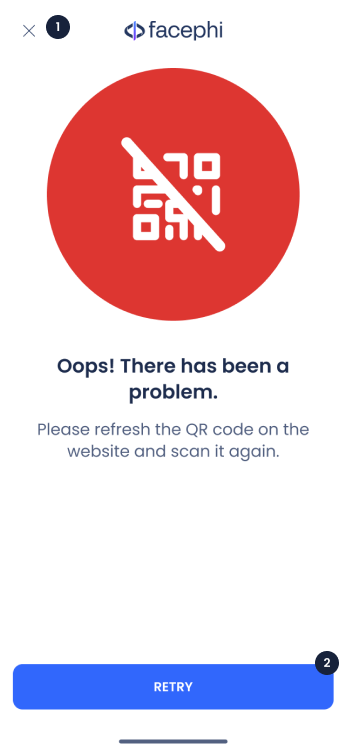
There was a conflict when scanning the QR Code. Refresh the page so that another QR Code is generated, and scan that new QR Code.
By pressing button (2) you return to the Widget to retry the previous step. If you want to go back, press icon (1).
1. Back button
2. Retry button
{% endcolumn %}
{% endcolumns %}
#### **Connection error**[ ](#error-de-conexión)
{% columns %}
{% column width="41.66666666666667%" %}
{% endcolumn %}
{% column %}
There was an error with your internet connection.
By pressing button (2) you return to the Widget to retry the previous step. If you want to go back, press icon (1).
1. Back button
2. Retry button
{% endcolumn %}
{% endcolumns %}