> For the complete documentation index, see [llms.txt](https://docs.facephi.com/llms.txt). Markdown versions of documentation pages are available by appending `.md` to page URLs; this page is available as [Markdown](https://docs.facephi.com/docs.facephi-en/products/autenticacion-usuarios-registrados/editor-1/mobile/ios/widgets/qr.md). Agents can also search and read this documentation through its [MCP server](https://docs.facephi.com/~gitbook/mcp).
# QR
**QR Code Capture Widget v.1.5.0**
### **Introduction**[](#introducción)
QR Code scanning is a process that lets you read the product code on its web page so you can log in.
### **Requirements and installation**[](#requisitos-e-instalación)
Compatible with iOS 13 or later devices
### **Scan QR Code**[](#escanear-qr)
{% columns %}
{% column width="41.66666666666667%" %}
{% endcolumn %}
{% column %}
The first screen is a tutorial explaining the steps to follow to scan a QR Code.
To continue, tap the button (2).
If, instead, you want to go back and select another biometric option, tap the icon (1).
1. Back button
2. Continue button
{% endcolumn %}
{% endcolumns %}
{% columns %}
{% column width="41.66666666666667%" %}
{% endcolumn %}
{% column %}
Once in the Widget, text (2) appears with instructions for correctly scanning the QR Code.
If you follow the instructions carefully, the capture will happen automatically and take you to the next step.
If you don't want to complete this step, you can close the Widget by tapping the icon (1).
1. Close button
2. Help message
{% endcolumn %}
{% endcolumns %}
### **Errors**[](#errores)
#### **Timed out**[](#tiempo-superado)
{% columns %}
{% column width="41.66666666666667%" %}
{% endcolumn %}
{% column %}
The time allowed for the Widget to capture the image has expired. Once the camera starts, you have X seconds to complete the relevant step. Otherwise, this message will appear, prompting you to try again.
Tap the button (2) to return to the Widget and retry the previous step. To go back, tap the icon (1).
1. Back button
2. Retry button
{% endcolumn %}
{% endcolumns %}
#### **QR Code issue**[](#problema-con-el-qr)
{% columns %}
{% column width="41.66666666666667%" %}
{% endcolumn %}
{% column %}
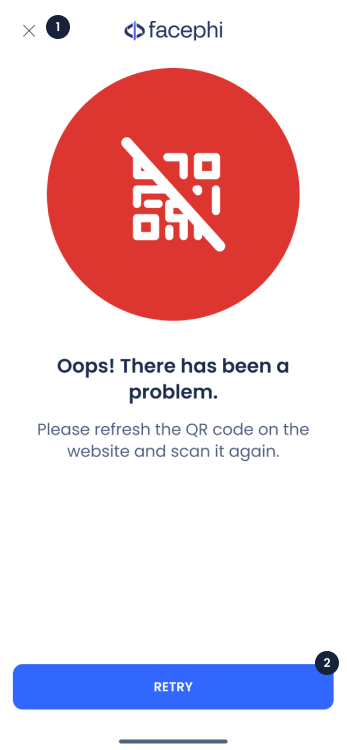
There was a conflict while scanning the QR Code. Refresh the page to generate another QR Code, then scan the new QR Code.
Tap the button (2) to return to the Widget and retry the previous step. To go back, tap the icon (1).
1. Back button
2. Retry button
{% endcolumn %}
{% endcolumns %}
#### **Connection error**[](#error-de-conexión)
{% columns %}
{% column width="41.66666666666667%" %}
{% endcolumn %}
{% column %}
There was an error with your internet connection.
Tap the button (2) to return to the Widget and retry the previous step. To go back, tap the icon (1).
1. Back button
2. Retry button
{% endcolumn %}
{% endcolumns %}