> For the complete documentation index, see [llms.txt](https://docs.facephi.com/llms.txt). Markdown versions of documentation pages are available by appending `.md` to page URLs; this page is available as [Markdown](https://docs.facephi.com/docs.facephi-en/products/autenticacion-usuarios-registrados/editor-1/mobile/ios/widgets/rostro.md).
# Face
**Face capture Widget**
### **Introduction**[](#introducción)
Selphi is a biometric solution that allows capturing and validating a user's face.
As a result, the authenticity of the document and the user is verified using algorithms and security protocols. All extracted data can be consulted at any time from our platform.
### **Requirements and installation**[](#requisitos-e-instalación)
Facephi Onboarding is compatible with iOS 13 or later devices.
### **Capture the face**[](#capturar-el-rostro)
{% columns %}
{% column width="41.66666666666667%" %}
{% endcolumn %}
{% column %}
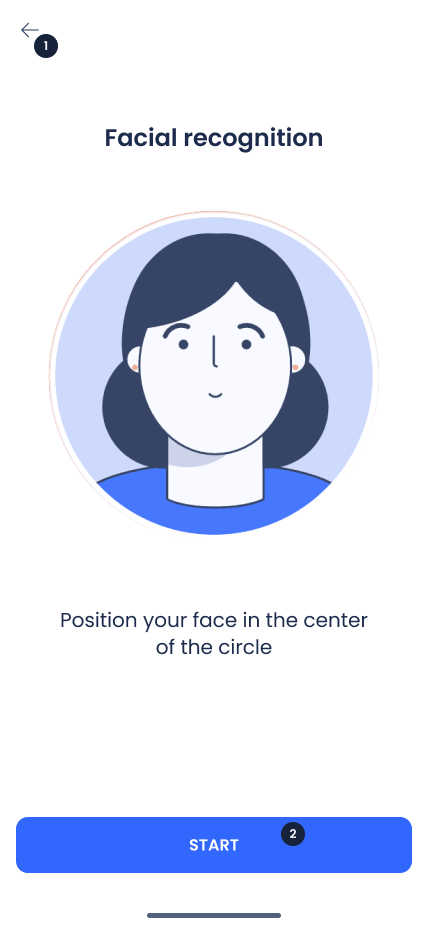
The first screen is a tutorial that explains how to perform face capture.
The animation shows how to interact with the Widget. The text provides details on how to carry out this step correctly.
To continue, press the button (3). To go back, press the icon (1).
1. Back button
2. Continue button
{% endcolumn %}
{% endcolumns %}
{% columns %}
{% column width="41.66666666666667%" %}
{% endcolumn %}
{% column %}
Once in the Widget, text (3) appears that gives you instructions on how to position yourself, or what you need to keep in mind.
If you follow the instructions correctly, the capture will be performed automatically and you will be taken to the next step. If you want to see more instructions on how to perform the capture, press the button (2).
If you do not want to perform this step, you can close the Widget by pressing the icon (1).
1. Close button
2. Information button
3. Help message
{% endcolumn %}
{% endcolumns %}
{% columns %}
{% column width="41.66666666666667%" %}
{% endcolumn %}
{% column %}
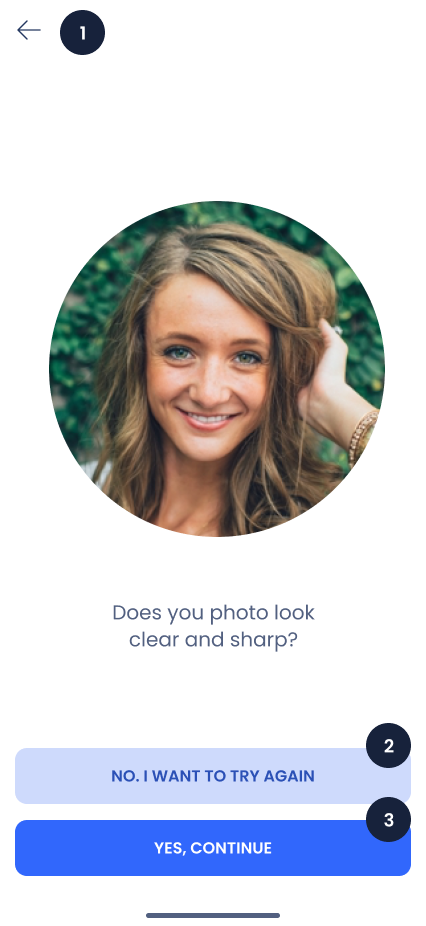
The Widget has captured the face, and this preview screen is displayed. Here you must check that the oval of your face is fully visible and clear.
If the photo is blurry, or parts of your face are covered, we recommend pressing the button (2) to retake the photo. A poor capture can lead to misinterpretation of the data and having to repeat the process again.
If the photo is clear, press the button (3) to continue to the next step.
To exit this step, press the icon (1). Skipping this step will take you to the previous step.
1. Back button
2. Retry button
3. Continue button
{% endcolumn %}
{% endcolumns %}
### **Errors**[](#errores)
#### **Timeout exceeded**[](#tiempo-superado)
{% columns %}
{% column width="41.66666666666667%" %}
{% endcolumn %}
{% column %}
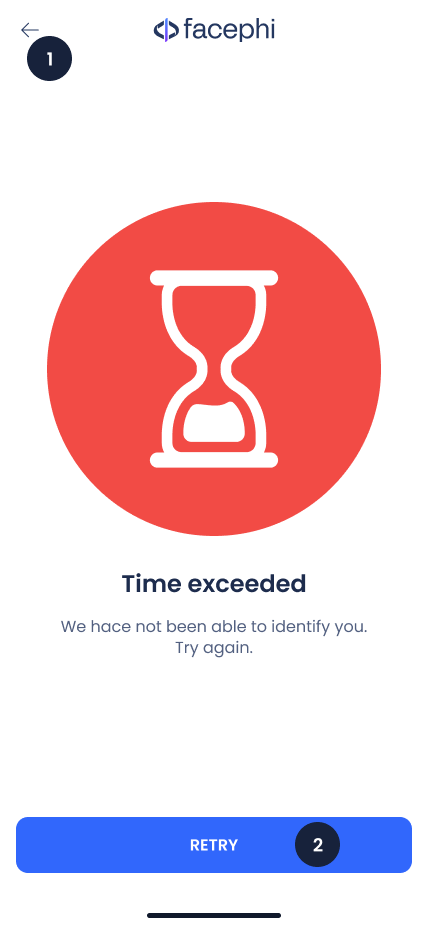
The timeout for the Widget to perform the capture has been exceeded. Once the camera starts, you have X seconds to complete the corresponding step. Otherwise, this message will appear so you can try again.
Pressing the button (2) takes you back to the Widget to retry the previous step. If you want to go back, press the icon (1).
1. Back button
2. Retry button
{% endcolumn %}
{% endcolumns %}
#### **Internet connection**[](#conexión-a-internet)
{% columns %}
{% column width="41.66666666666667%" %}
{% endcolumn %}
{% column %}
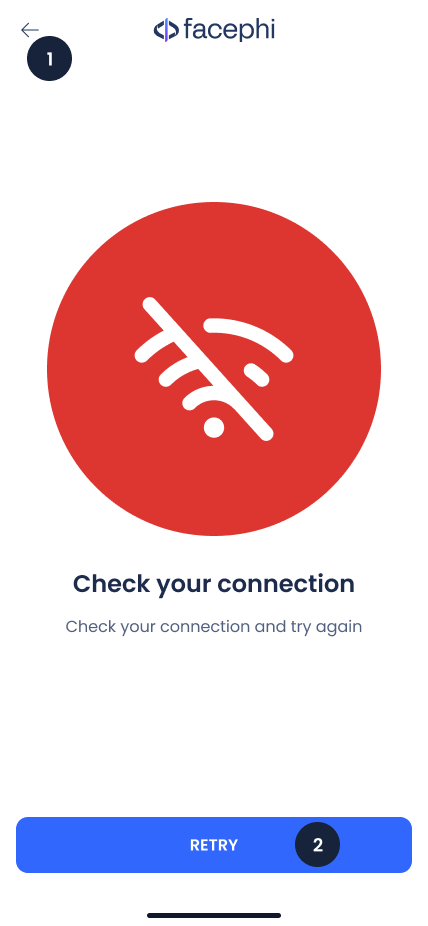
There was an error with your internet connection.
Pressing the button (2) takes you back to the Widget to retry the previous step. If you want to go back, press the icon (1).
1. Back button
2. Retry button
{% endcolumn %}
{% endcolumns %}
#### **Update the application**[](#actualizar-la-aplicación)
{% columns %}
{% column width="41.66666666666667%" %}
{% endcolumn %}
{% column %}
There is a new version of the application, and it needs to be updated. Usually, this is due to bug fixes or the implementation of improvements.
Pressing the button (2) will take you to the download page to update the app. Otherwise, to close this error screen, press the icon (1).
1. Back button
2. Update app button
{% endcolumn %}
{% endcolumns %}
#### **Camera permissions**[](#permisos-de-cámara)
{% columns %}
{% column width="41.66666666666667%" %}
{% endcolumn %}
{% column %}
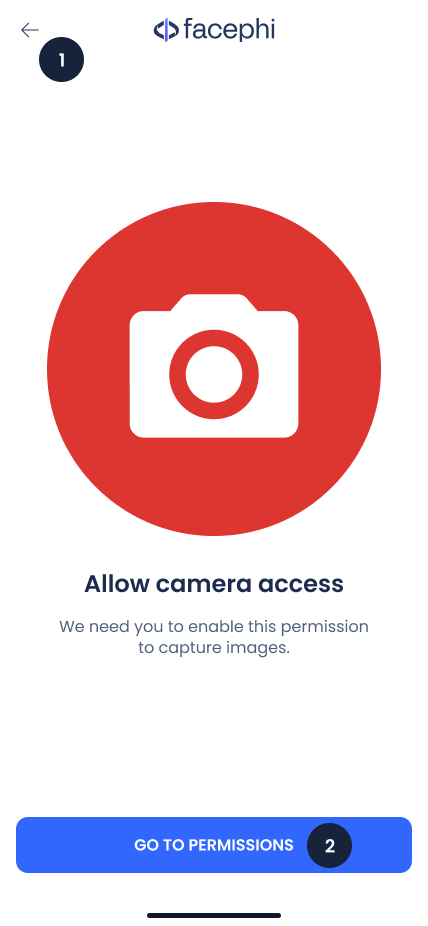
Previously, camera permission was denied, but the Widget is trying to access it.
Pressing the button (2) will take you to the app permissions so you can enable them. Otherwise, to close this error screen, press the icon (1).
1. Back button
2. Retry button
{% endcolumn %}
{% endcolumns %}
#### **Allowed attempts**[](#intentos-permitidos)
{% columns %}
{% column width="41.66666666666667%" %}
{% endcolumn %}
{% column %}
For security reasons, there is a limit to the number of allowed attempts to perform certain actions. If this error has appeared, it is because you have made X consecutive unsuccessful attempts. You must wait for the time to end before trying this step again.
Pressing the button (2) takes you back to the Widget to retry this step. If you want to go back, press the icon (1).
1. Back button
2. Retry button
{% endcolumn %}
{% endcolumns %}