> For the complete documentation index, see [llms.txt](https://docs.facephi.com/llms.txt). Markdown versions of documentation pages are available by appending `.md` to page URLs; this page is available as [Markdown](https://docs.facephi.com/docs.facephi-en/products/autenticacion-usuarios-registrados/editor-1/mobile/ios/widgets/voz.md).
# Voice
**Voice capture Widget v.1.5.0**
### **Introduction**[](#introducción)
Voice authentication is a process that allows user identity to be verified through voice biometric technology.
To carry out user authentication, a prior unique biometric registration step is required for identity verification. Once registered, the authentication process involves capturing the face, which, when compared with the previously registered one, will allow the user to access the product and/or service.
### **Requirements and installation**[](#requisitos-e-instalación)
Compatible with iOS 13 or later
### **Voice capture**[](#captura-de-voz)
{% columns %}
{% column width="41.66666666666667%" %}
{% endcolumn %}
{% column %}
The first screen is a tutorial that explains how to perform voice capture.
The animation shows how to interact with the Widget. The text gives details on how to carry out this step correctly.
To continue, press button (2). To go back, press icon (1).
1. Back button
2. Continue button
{% endcolumn %}
{% endcolumns %}
{% columns %}
{% column width="41.66666666666667%" %}
{% endcolumn %}
{% column %}
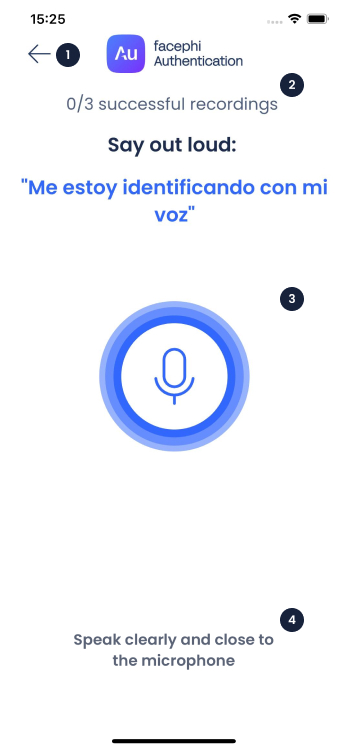
Once in the Widget, a text (4) appears that gives you instructions to carry out a correct voice recording.
Speak loudly and clearly. The animation (3) and the text (4) change state in real time, depending on the voice intensity, errors, or whether the voice recording was successful.
If the recording is correct, it will be added to the counter that appears in (2).
To go back, press icon (1).
1. Back icon
2. Successful recordings counter
3. Real-time animation
4. Status message
{% endcolumn %}
{% endcolumns %}
### **Errors**[](#errores)
#### **Microphone**[](#micrófono)
{% columns %}
{% column width="41.66666666666667%" %}
{% endcolumn %}
{% column %}
For security reasons, there is a limit on the number of allowed attempts to perform certain actions. If this error appears, it is because you have made X consecutive unsuccessful attempts. You must wait for the time to expire before trying this step again.
By pressing button (2) you return to the widget to retry the previous step. If you want to go back, press icon (1).
1. Back button
2. Retake button
{% endcolumn %}
{% endcolumns %}
#### **Allowed attempts**[](#intentos-permitidos)
{% columns %}
{% column width="41.66666666666667%" %}
{% endcolumn %}
{% column %}
The application is trying to access the microphone, but the permissions are blocked. To continue, you must enable this permission.
By pressing the button (2), you will be redirected to your device's permissions so you can enable it. Once done, return to the application and try the voice recording again.
If you want to go back, tap the icon (1).
1. Back button
2. Retake button
{% endcolumn %}
{% endcolumns %}