> For the complete documentation index, see [llms.txt](https://docs.facephi.com/llms.txt). Markdown versions of documentation pages are available by appending `.md` to page URLs; this page is available as [Markdown](https://docs.facephi.com/docs.facephi-en/products/autenticacion-usuarios-registrados/editor-1/web/widgets/voz.md).
# Voice
**Voice capture Widget v.1.0.2**
### **Introduction**
Voice authentication is a process that allows verifying user identity through voice biometric technology.
To carry out user Authentication, a prior unique biometric registration step is required to verify identity. Once registered, the Authentication process involves capturing the voice, which, when compared with the previously recorded one, will allow the user to access the product and/or service.
### **Requirements and installation**
To use Facephi Authentication, you must have a compatible browser on your device, whether from a computer or from a mobile device. The compatible operating systems and browsers are:
* Windows, macOS, Android, iOS.
* Mozilla Firefox, Google Chrome, Opera, Safari.
### **Voice capture**
{% columns %}
{% column %}
{% endcolumn %}
{% column %}
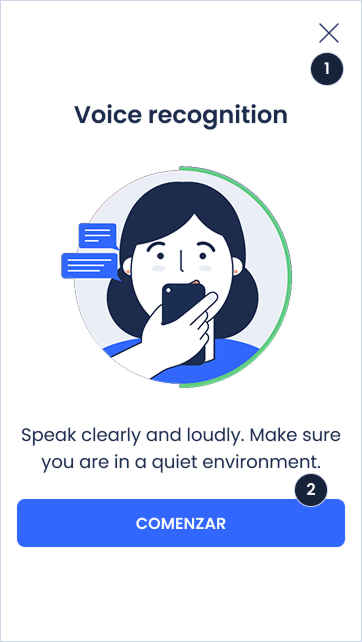
The first screen is a tutorial that explains how to perform voice capture.
The animation shows how to interact with the Widget. The text provides details on how to perform this step correctly.
To continue, press the button (3).
1. Button to close the process
2. Start button
{% endcolumn %}
{% endcolumns %}
{% columns %}
{% column %}
{% endcolumn %}
{% column %}
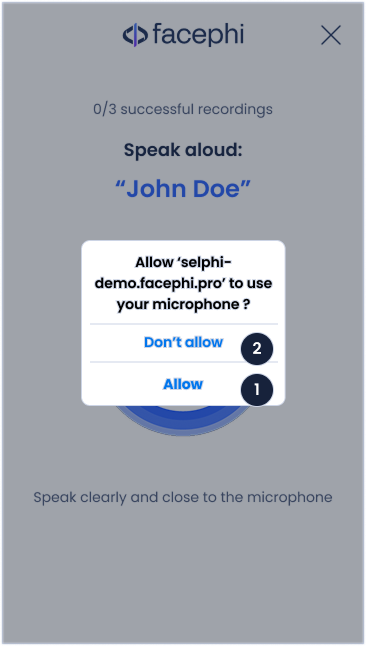
After the tutorial, a message appears asking for the necessary permissions to carry out the process.
To continue, press the button (1). To cancel the permission and not continue, press the button (2).
1. Button to allow access
2. Button to cancel access
{% endcolumn %}
{% endcolumns %}
{% columns %}
{% column %}
{% endcolumn %}
{% column %}
Once the process starts, the phrase you previously selected (3) appears, along with a text (4) that gives you instructions to make a correct voice recording.
Speak loudly and clearly. The text (4) and the animation change state depending on errors, recording processing, or successful voice registration.
If the recording is correct, the number in the counter that appears in (2) will increase.
To close the process, press the icon (1).
1. Button to close the process
2. Successful recording counter
3. Selected phrase
4. Help message
{% endcolumn %}
{% endcolumns %}
### **Errors**
#### **Time exceeded**
{% columns %}
{% column %}
{% endcolumn %}
{% column %}
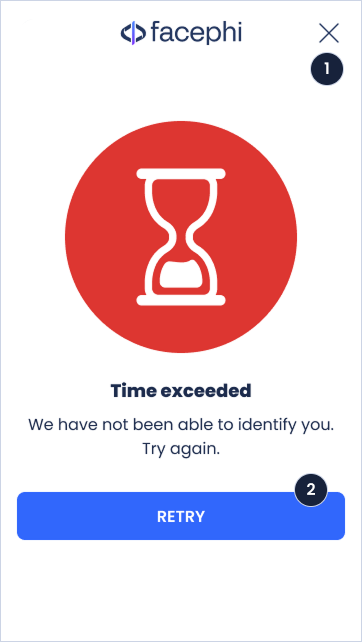
The timeout for the Widget to make the capture has been exceeded. Once the process starts, you have X seconds to complete the corresponding step. If not, this message will appear so you can try again.
By pressing the icon (1), you will return to the Widget to retry this step.
1. Button to close this message
2. Retry button
{% endcolumn %}
{% endcolumns %}
#### **Microphone permissions**
{% columns %}
{% column %}
{% endcolumn %}
{% column %}
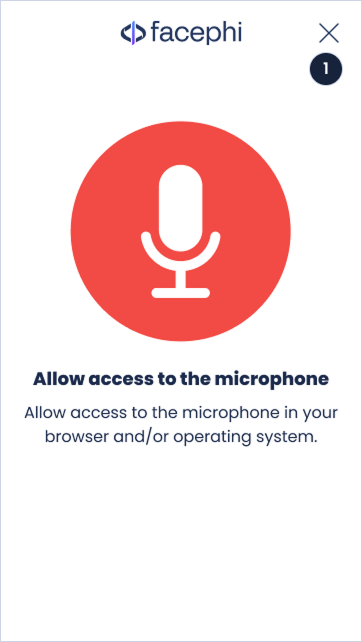
The application is trying to access the microphone, but the permissions are blocked. To continue, you must enable this permission.
By pressing the icon (1), you will close this window. Accept the microphone permissions in your browser or device, and try this step again.
1. Button to close this message
{% endcolumn %}
{% endcolumns %}