> For the complete documentation index, see [llms.txt](https://docs.facephi.com/llms.txt). Markdown versions of documentation pages are available by appending `.md` to page URLs; this page is available as [Markdown](https://docs.facephi.com/docs.facephi-en/products/editor-1/facephi-onboarding/mobile/android/widgets/rostro.md).
# Face
**Face capture Widget**
### **Introduction**[](#introducción)
Selphi is a biometric solution that lets you capture and validate a user's face.
As a result, the authenticity of the document and the user is verified using security algorithms and protocols. All extracted data can be viewed at any time from our platform.
### **Requirements and installation**[](#requisitos-e-instalación)
Facephi Onboarding is compatible with Android 6 or later devices.
### **Capturing the face**[](#capturar-el-rostro)
{% columns %}
{% column width="41.66666666666667%" %}
{% endcolumn %}
{% column %}
The first screen is a tutorial that explains how to capture a face.
The animation shows how to interact with the Widget. The text provides details on how to complete this step correctly.
To continue, tap the button (2). To go back, tap the icon (1).
1. Back button
2. Continue button
{% endcolumn %}
{% endcolumns %}
{% columns %}
{% column width="41.66666666666667%" %}
{% endcolumn %}
{% column %}
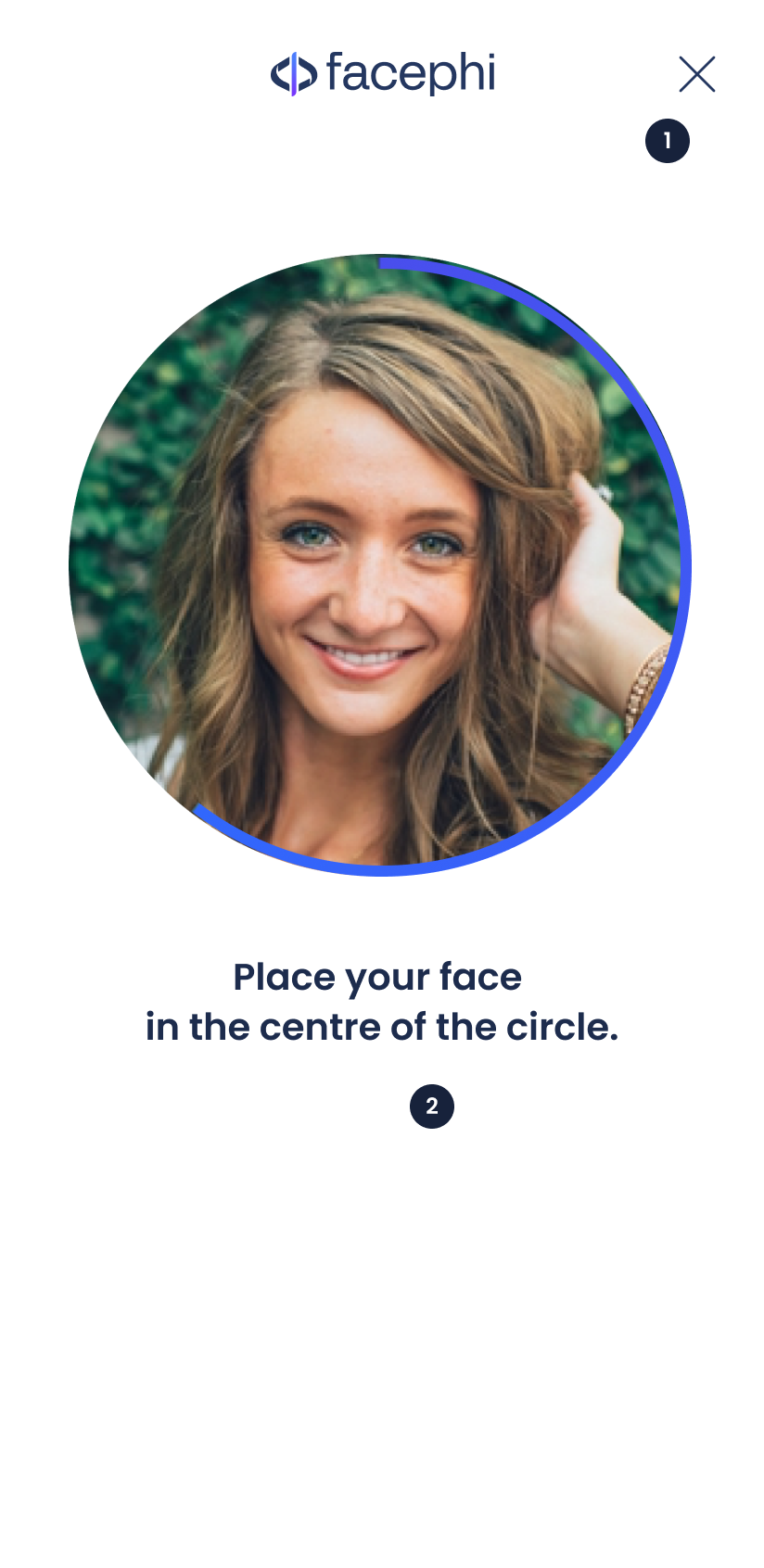
Once in the Widget, text (2) appears with instructions on how to position yourself and what to keep in mind.
If you follow the instructions correctly, the capture will happen automatically and take you to the next step.
If you don't want to complete this step, you can close the Widget by tapping the icon (1).
1. Close button
2. Help message
{% endcolumn %}
{% endcolumns %}
{% columns %}
{% column width="41.66666666666667%" %}
{% endcolumn %}
{% column %}
The Widget has captured your face, and this preview screen is displayed. Here, check that your face is fully visible within the oval and in focus.
If the photo is blurry or parts of your face are covered, we recommend tapping the button (2) to retake it. A poor capture may lead to the data being interpreted incorrectly, and you may have to repeat the process.
If the photo is in focus, tap the button (3) to continue to the next step.
To exit this step, tap the icon (1). Skipping this step will take you back to the previous step.
1. Back button
2. Retake button
3. Continue button
{% endcolumn %}
{% endcolumns %}
### **Errors**[](#errores)
#### **Time limit exceeded**[](#tiempo-superado)
{% columns %}
{% column width="41.66666666666667%" %}
{% endcolumn %}
{% column %}
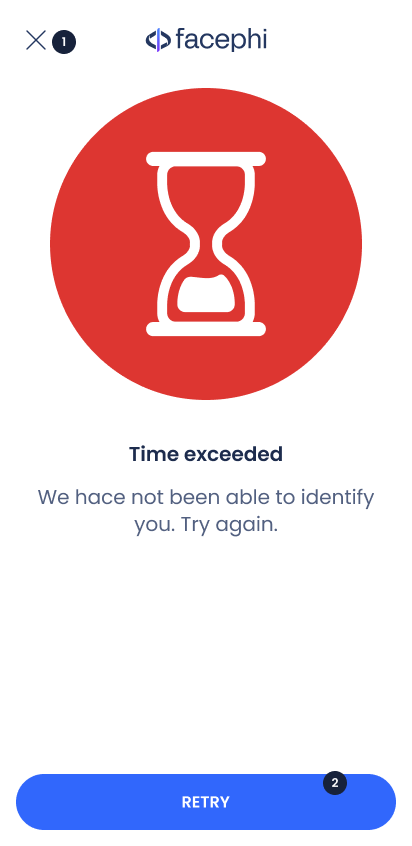
The time allowed for the Widget to capture the image has expired. Once the camera starts, you have X seconds to complete the relevant step. Otherwise, this message will appear and you can try again.
Tap the button (2) to return to the Widget and retry the previous step. To close this screen, tap the icon (1).
1. Close button
2. Retake button
{% endcolumn %}
{% endcolumns %}
#### **Internet connection**[](#conexión-a-internet)
{% columns %}
{% column width="41.66666666666667%" %}
{% endcolumn %}
{% column %}
There was a problem with your internet connection.
Tap the button (2) to return to the Widget and retry the previous step. To close this screen, tap the icon (1).
1. Close button
2. Retake button
{% endcolumn %}
{% endcolumns %}
#### **Update the application**[](#actualizar-la-aplicación)
{% columns %}
{% column width="41.66666666666667%" %}
{% endcolumn %}
{% column %}
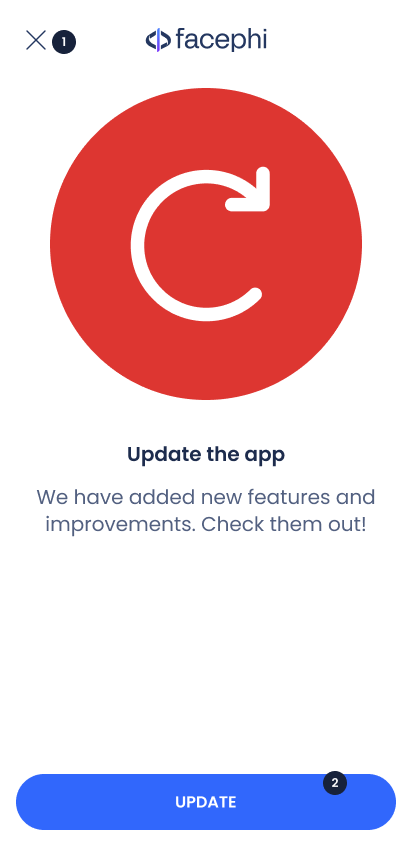
A new version of the application is available, and you need to update it. Updates are usually released to fix bugs or add improvements.
Tap the button (2) to go to the download page and update the app. To close this error screen, tap the icon (1).
1. Close button
2. Update app button
{% endcolumn %}
{% endcolumns %}
#### **Camera permissions**[](#permisos-de-cámara)
{% columns %}
{% column width="41.66666666666667%" %}
{% endcolumn %}
{% column %}
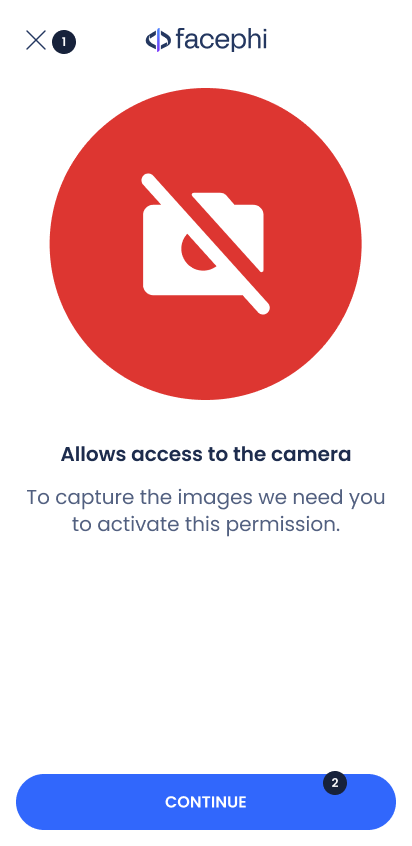
Camera access was previously denied, but the Widget is trying to access the camera.
Tap the button (2) to go to the app's permissions settings and enable camera access. Otherwise, tap the icon (1) to close this error screen.
1. Close button
2. Go to permissions button
{% endcolumn %}
{% endcolumns %}
#### **Allowed attempts**[](#intentos-permitidos)
{% columns %}
{% column width="41.66666666666667%" %}
{% endcolumn %}
{% column %}
For security reasons, there is a limit on the number of attempts allowed for certain actions. If this error appears, it means you have made X consecutive unsuccessful attempts. You must wait for the time limit to expire before trying this step again.
Tap the button (2) to return to the Widget and retry this step. To go back, tap the icon (1).
1. Close button
2. Retake button
{% endcolumn %}
{% endcolumns %}