> For the complete documentation index, see [llms.txt](https://docs.facephi.com/llms.txt). Markdown versions of documentation pages are available by appending `.md` to page URLs; this page is available as [Markdown](https://docs.facephi.com/docs.facephi-en/products/editor-1/facephi-onboarding/mobile/ios/widgets/huellas-dactilares.md).
# Fingerprints
**Fingerprint Widget**
### **Introduction**[](#introducción)
The Fingerprint Widget is a biometric solution that allows the user's fingerprints to be captured and validated.
### **Requirements and installation**[](#requisitos-e-instalación)
Facephi Onboarding is compatible with iOS 13 or later.
### **Fingerprint Capture**[](#capturar-huellas-dactilares)
{% columns %}
{% column width="41.66666666666667%" %}
{% endcolumn %}
{% column %}
The first screen is a tutorial that explains how to perform Fingerprint Capture.
The animation shows how to interact with the Widget. The text gives details on how to carry out this step correctly.
To continue, press button (2). To go back, press icon (1).
1. Back button
2. Continue button
{% endcolumn %}
{% endcolumns %}
{% columns %}
{% column width="41.66666666666667%" %}
{% endcolumn %}
{% column %}
Once started, the camera opens and you must place your fingers together on the marker. Keep your hand within the indicated area and follow the messages that appear on screen: move your fingers closer or farther away, move them slowly to focus, show your fingertips, or use the indicated hand.
If a finger is missing or the fingers are not detected, adjust the position until all of them are visible within the marker. When the capture is ready, keep your fingers still. The app will capture the fingerprints automatically and you will have completed the step.
To go back, press icon (1).
1. Back button
{% endcolumn %}
{% endcolumns %}
### **Time exceeded**[](#tiempo-superado)
{% columns %}
{% column width="41.66666666666667%" %}
{% endcolumn %}
{% column %}
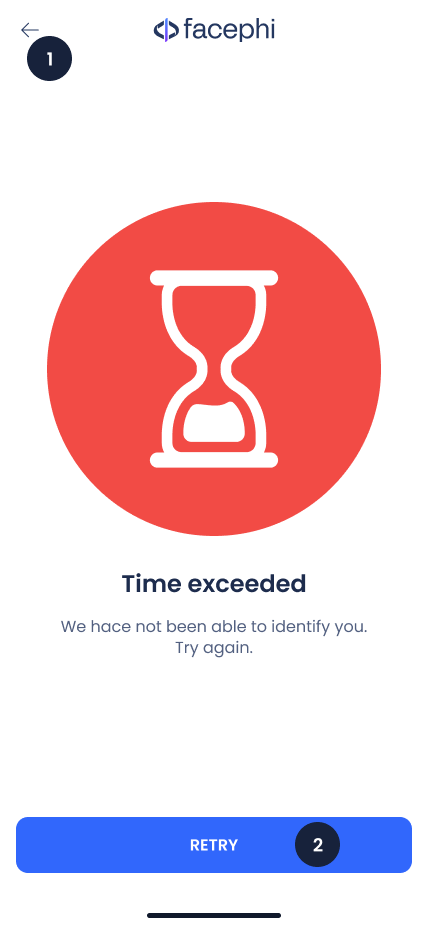
The maximum time for the widget to perform the capture has been exceeded.
The most likely case is that the necessary conditions for the widget to take an appropriate photo were not met.
Retry this step following the instructions shown on the screen, or tap the information icon (if any) to receive tips.
1. Back button
2. Retake button
{% endcolumn %}
{% endcolumns %}