> For the complete documentation index, see [llms.txt](https://docs.facephi.com/llms.txt). Markdown versions of documentation pages are available by appending `.md` to page URLs; this page is available as [Markdown](https://docs.facephi.com/docs.facephi-en/products/editor-1/facephi-onboarding/mobile/ios/widgets/nfc.md).
# NFC
**NFC Widget**
### **Introduction**[](#introducción)
The NFC Widget is a data-reading solution using NFC technology (*Near-field communication* or near-field communication), which allows capturing and validating a user's document.
As a result, the document's authenticity is verified using algorithms and security protocols. All extracted data can be consulted at any time from Facephi Platform.”
### **Requirements and installation**[](#requisitos-e-instalación)
Facephi Onboarding is compatible with iOS 13 or later devices.
### **Scan NFC**[](#escanear-nfc)
{% columns %}
{% column width="41.66666666666667%" %}
{% endcolumn %}
{% column %}
The first screen is a tutorial that explains how to scan the NFC chip.
The animation shows how to interact with the Widget. The text provides details on how to carry out this step correctly.
To go back, tap icon (1). To view a tutorial or more information about this step, tap button (2). To continue, tap button (3).
1. Back button
2. NFC tutorials button
3. Continue button
{% endcolumn %}
{% endcolumns %}
{% columns %}
{% column width="41.66666666666667%" %}
{% endcolumn %}
{% column %}
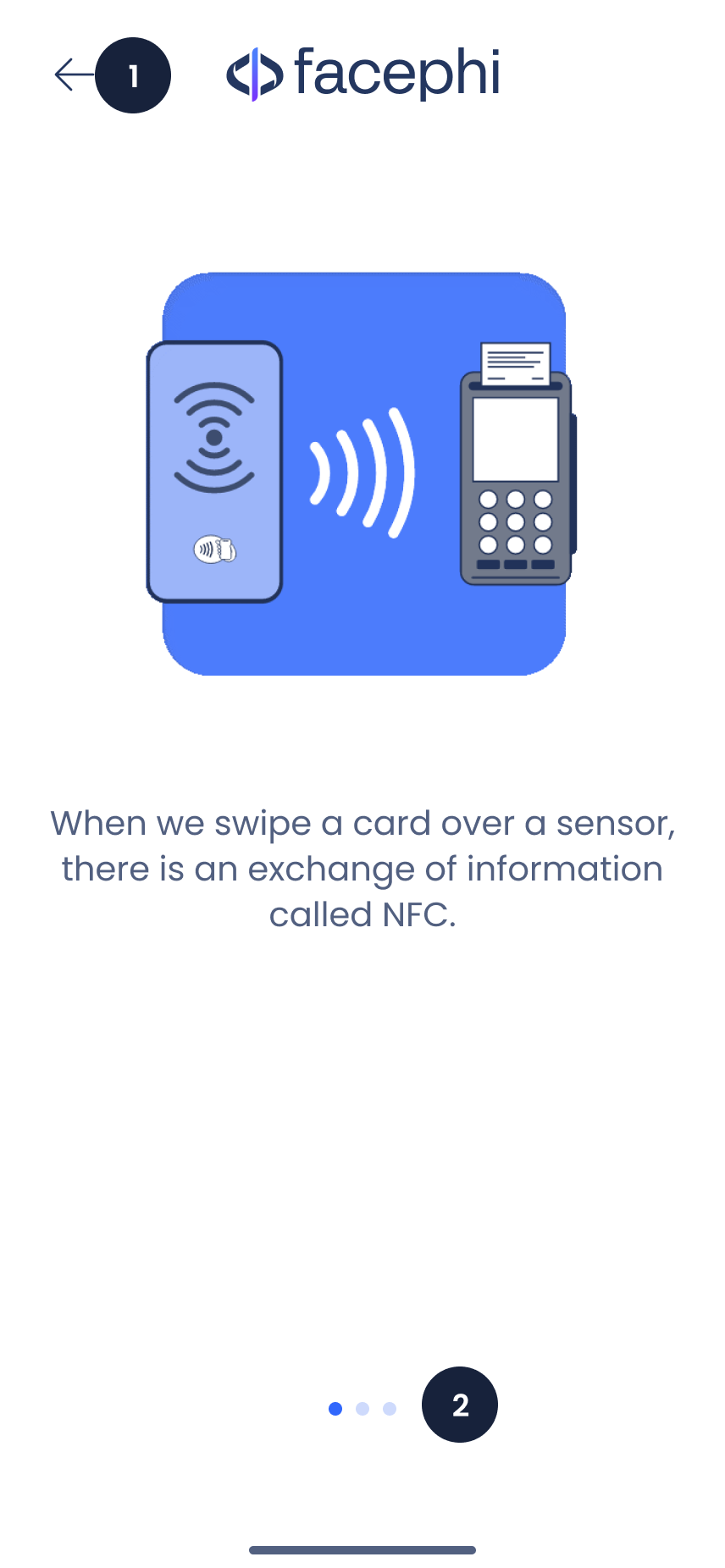
If we have tapped the button to learn more about NFC, this tutorial screen will appear.
To exit, tap the icon (1).
1. Back button
2. Page indicator
{% endcolumn %}
{% endcolumns %}
{% columns %}
{% column width="41.66666666666667%" %}
{% endcolumn %}
{% column %}
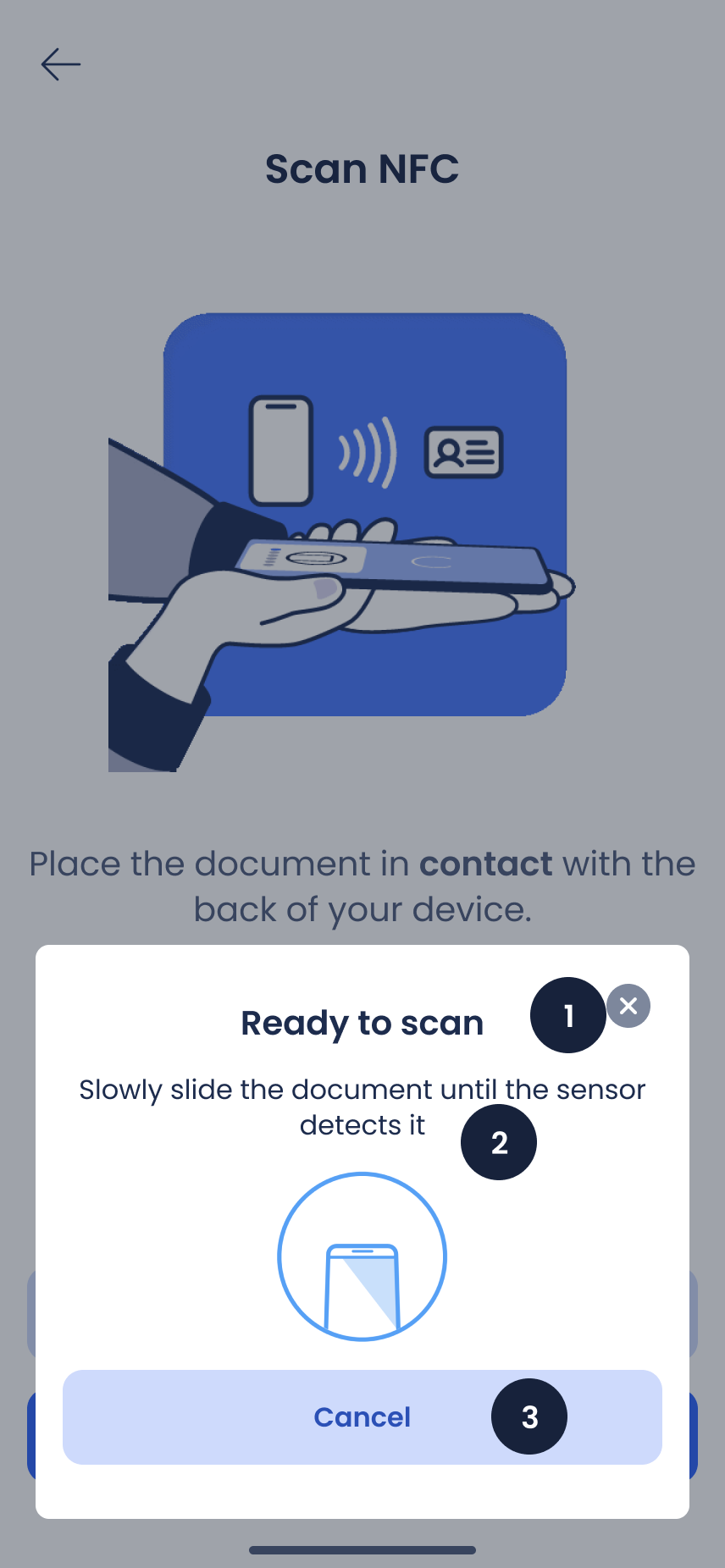
Once NFC capture has started, a text appears that gives instructions on what to do for a correct reading.
To cancel this process, tap button (1) or (3).
1. Button to cancel the process
2. Instruction text
3. Button to cancel
{% endcolumn %}
{% endcolumns %}
{% columns %}
{% column width="41.66666666666667%" %}
{% endcolumn %}
{% column %}
When the document is in the correct position relative to the device, data transfer will begin. Keep it in that position until the transfer is complete.
To cancel this process, tap button (1) or (3).
1. Button to close
2. Instruction text
3. Button to cancel
{% endcolumn %}
{% endcolumns %}
{% columns %}
{% column width="41.66666666666667%" %}
{% endcolumn %}
{% column %}
In the event of an error, you will be notified through this screen.
* To close this screen, tap button (1).
* To skip this step, tap (2).
* To try again, tap button (3).
* Button to close
* Button to skip step
* Retry button
{% endcolumn %}
{% endcolumns %}
### **Errors**[](#errores)
#### **Timeout exceeded**[](#tiempo-superado)
{% columns %}
{% column width="41.66666666666667%" %}
{% endcolumn %}
{% column %}
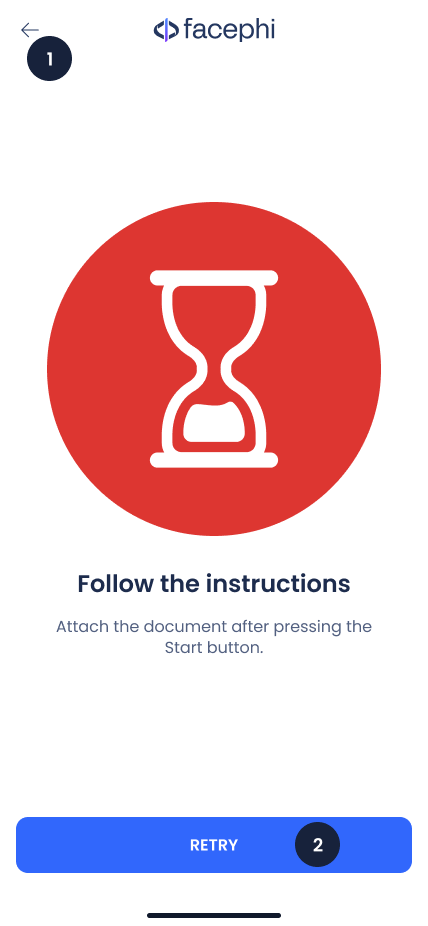
This diagnosis is shown when you have started the Widget, but the document was already next to the device before pressing Start. The steps to follow for a correct reading are:
* Keep the **device and the document apart**.
* Press the button **Start.**
* **Now bring together** the document to the back side of the device.
Retry this step (2) by following the instructions that appear on the screen, or tapping the information icon (if there is one) to get tips.
1. Back button
2. Retry button
{% endcolumn %}
{% endcolumns %}
#### **Internet connection**[](#conexión-a-internet)
{% columns %}
{% column width="41.66666666666667%" %}
{% endcolumn %}
{% column %}
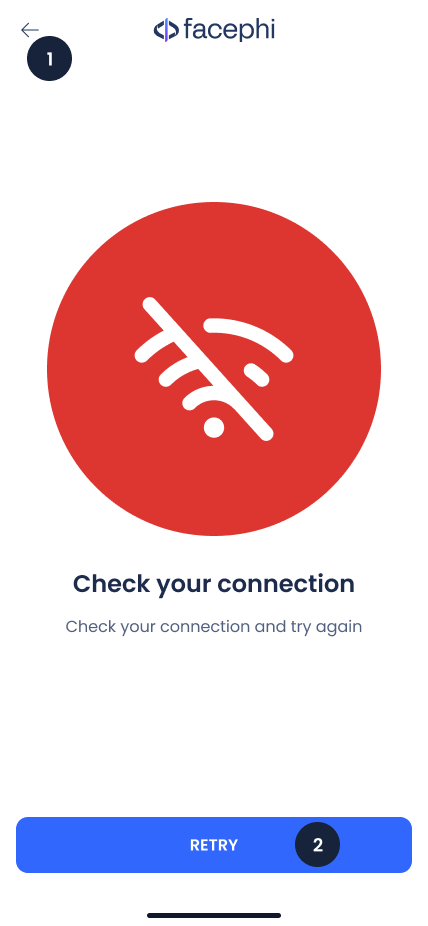
There was an error with your internet connection.
Pressing the button (2) takes you back to the Widget to retry the previous step. If you want to go back, press the icon (1).
1. Back button
2. Retry button
{% endcolumn %}
{% endcolumns %}
#### **Update the application**[](#actualizar-la-aplicación)
{% columns %}
{% column width="41.66666666666667%" %}
{% endcolumn %}
{% column %}
There is a new version of the application, and it needs to be updated. Usually, this is due to bug fixes or the implementation of improvements.
Pressing the button (2) will take you to the download page to update the app. Otherwise, to close this error screen, press the icon (1).
1. Back button
2. Retry button
{% endcolumn %}
{% endcolumns %}
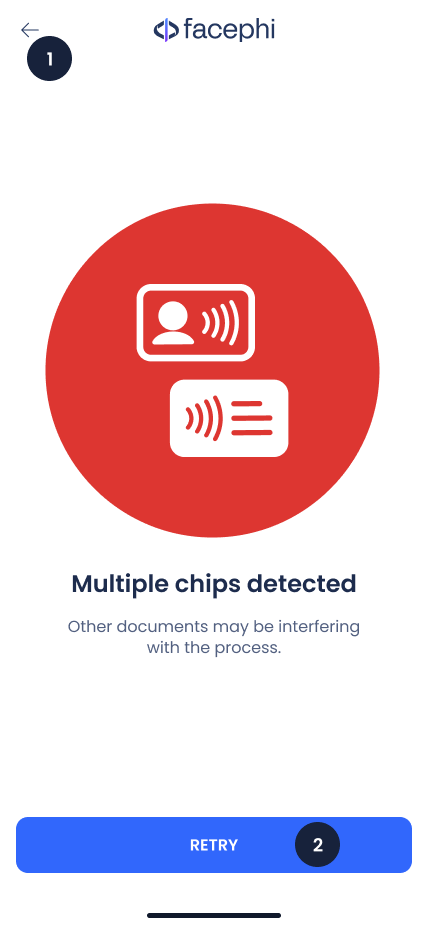
#### **Multiple chips**[](#varios-chips)
{% columns %}
{% column width="41.66666666666667%" %}
{% endcolumn %}
{% column %}
This error appears when, in addition to NFC, it is detecting other chips nearby. It may be due to:
* The document is next to other documents: move the document you selected for onboarding away from the rest of the documents.
Retry this step by following the instructions on screen, or by tapping the information icon (if there is one) to get tips.
1. Back button
2. Retry button
{% endcolumn %}
{% endcolumns %}
#### **Problems reading the document**[](#problemas-al-leer-el-documento)
{% columns %}
{% column width="41.66666666666667%" %}
{% endcolumn %}
{% column %}
The device's sensor does not detect NFC. It may be due to:
* The document is too far from the device. We recommend bringing the document and the device together so that they make contact.
* The document and the device are together, but it does not detect it: slide them slightly over each other until the device detects the document. Depending on the device brand, the sensor is located in a different area. For this reason, we recommend bringing the document to the back of the device and moving it around until you find the internal sensor.
Retry this step by following the instructions on screen, or by tapping the information icon (if there is one) to get tips.
1. Back button
2. Retry button
{% endcolumn %}
{% endcolumns %}
{% columns %}
{% column width="41.66666666666667%" %}
{% endcolumn %}
{% column %}
This error appears when data transfer via NFC has started, but the connection was lost during the transfer. It may be due to:
* The device or the document was moved while the transfer was taking place. When it starts loading, keep it in that position until it finishes.
Retry this step by following the instructions on screen, or by tapping the information icon (if there is one) to get tips.
1. Back button
2. Retry button
{% endcolumn %}
{% endcolumns %}