> For the complete documentation index, see [llms.txt](https://docs.facephi.com/llms.txt). Markdown versions of documentation pages are available by appending `.md` to page URLs; this page is available as [Markdown](https://docs.facephi.com/docs.facephi-en/products/idv-suite/flujos-and-integraciones/configuracion-tecnica-del-cliente/sdk-mobile/idv-mobile/componente-nfc.md).
# Component - NFC
NFC chip capture must be configured.
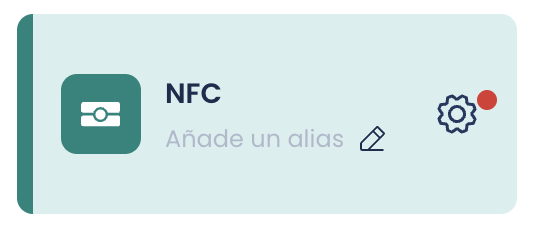
To do this, we click the gear icon; if it has a red dot, it means there is a required parameter that is not configured and we will not be able to save the Flow.
#### Tutorial before capture
Type: Boolean
Default: Enabled
Parameter name in the SDK: *showTutorial*
If enabled, the mobile app will show an information icon (i) in the upper-right corner of the "Initial tip before capture" view; this button shows a more detailed tutorial on how to perform the capture.
#### Initial tip before capture
Type: Boolean
Default: Enabled
Parameter name in the SDK: *showPreviousTip*
If enabled, the mobile app will show a view with a brief tutorial before starting the capture process.
#### Enable vibration during capture
Type: Boolean
Default: Enabled
Parameter name in the SDK: *vibrationEnabled*
If enabled, the mobile app will provide feedback to the user through haptic impulses (vibrations).
#### Error diagnostic screen
Type: Boolean
Default: Enabled
Parameter name in the SDK: *showDiagnostic*
If enabled, the mobile app will show a view indicating the specific error that prevented the capture process from being completed. Each error is handled differently and some views will present buttons to close, retry, or even go to the device settings.
#### Extraction time
Type: Int
Default: 50000
Parameter name in the SDK: *extractionTimeout*
The time in milliseconds that elapses from the start of the capture until the Timeout error is thrown.
In iOS, due to an operating system limitation, the maximum configurable time is 58000ms.
#### Document images
Type: Selector
Default: *empty - FILL IN*
Parameter name in the SDK: *documentNumber, birthDate & expiryDate*
NFC chips have a security layer that can only be bypassed by knowing 3 data points available in the MRZ of the physical document.
In this section we want to configure from *where* the NFC component will obtain the values of those 3 parameters.
It is essential that a step of the NFC component be preceded by at least one capture.
We must therefore indicate here the previous step of *Document* and in the additional selector choose the images extracted in that step on which an OCR reading will be performed.
#### Reading progress style
Type: Selector
Default: Dots
Parameter name in the SDK: *readingProgressStyle*
Changes the way the reading progress is presented to the user.
* **DOTS**: The user sees a sequence of *circles* filled/empty, the process advances as they are filled until reaching 10.
* **PERCENTAGE**: The user sees a percentage that increases as the reading progresses until reaching 100%.
#### Skip PACE
Type: Boolean
Default: Disabled
Parameter name in the SDK: *skipPace*
If enabled, the capture will not attempt to establish a communication process with the chip following the PACE standard (*Password Authenticated Connection Establishment*) and will use BAC directly *Basic Control Access).*
#### Extract facial image
Type: Boolean
Default: Enabled
Parameter name in the SDK: *extractFacialImage*
If enabled, the capture will extract the Face Capture of the document holder stored in the NFC chip.
This image can then be used for face Matching processes. *matching facial.*
#### Extract signature image
Type: Boolean
Default: Disabled
Parameter name in the SDK: *extractSignatureImage*
If enabled, the capture will extract the signature of the document holder stored in the NFC chip.